A step-by-step guide to installing OpenAI Codex CLI: check the system requirements (macOS, Linux, WSL2), pick one of four install methods (official script, npm, Homebrew, or GitHub release), run the installer, sign in with your ChatGPT account, then verify with codex --version and a simple first task. Every step includes a copy-ready command.
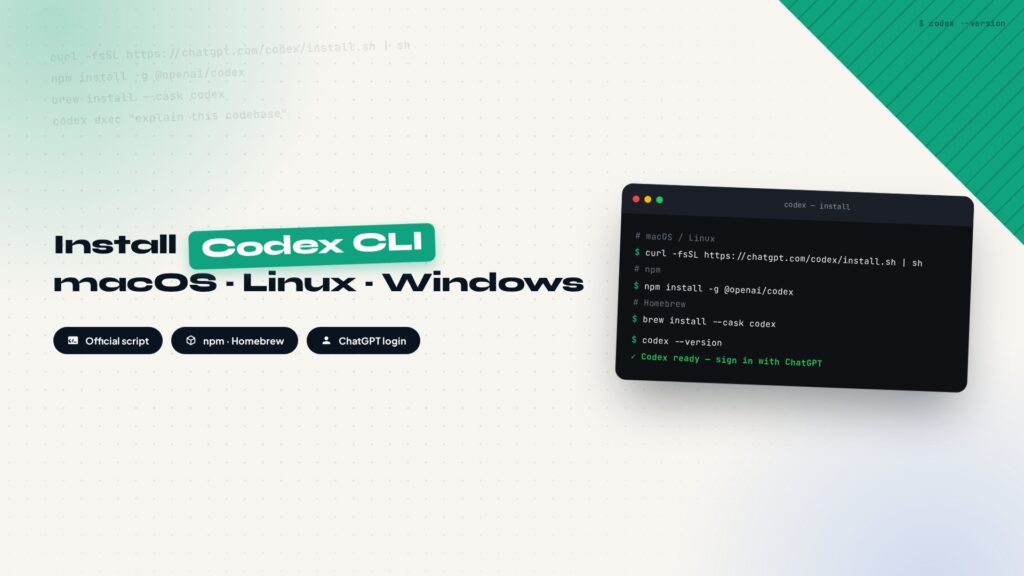
Codex is OpenAI’s coding agent for the terminal. Once it’s installed, you type codex, and it reads your code, edits files, and runs commands, turning natural-language requests into real changes. This article breaks the setup into four steps: check the system requirements, pick an install method, run the installer, and sign in. Every step has a command you can copy and run as-is.
Check the system requirements first
Codex CLI does not demand much from your machine, but a quick look at the official list saves you from discovering an incompatibility halfway through. It supports macOS, the common Linux distributions, and Windows 11 running through WSL2.
| Item | Requirement |
|---|---|
| Operating system | macOS 12 or newer; Ubuntu 20.04 / Debian 10 or newer; Windows 11 via WSL2 |
| Memory | 4 GB minimum, 8 GB recommended |
| Git | 2.23 or newer (optional, for the built-in PR helpers) |
Four install methods, pick one
OpenAI ships four install paths that cover different habits. Any of them works day to day; the differences are the command and the environment dependencies.
| Method | Best for | Command |
|---|---|---|
| Official installer script | Fastest option on macOS and Linux; downloads the latest binary automatically | curl -fsSL https://chatgpt.com/codex/install.sh | sh |
| PowerShell script | Windows users; run inside PowerShell | powershell -ExecutionPolicy ByPass -c "irm https://chatgpt.com/codex/install.ps1 | iex" |
| npm | Machines that already have a Node.js environment | npm install -g @openai/codex |
| Homebrew | macOS users who manage software with brew | brew install --cask codex |
If none of these appeal to you, grab the archive for your platform from the GitHub Releases page, extract it, rename the binary to codex, and put it on your PATH.
Step 1, install with the official script on macOS or Linux
Run this one line in your terminal. The script downloads the latest release for your platform and finishes the setup.
curl -fsSL https://chatgpt.com/codex/install.sh | sh
Open a new terminal window afterward so the updated PATH takes effect.
Step 2, Windows users install with PowerShell
Open PowerShell and run this line:
powershell -ExecutionPolicy ByPass -c "irm https://chatgpt.com/codex/install.ps1 | iex"
If you do most of your development inside WSL2, you can also run the Linux script from Step 1 in the WSL2 terminal. Both paths work.
Step 3, prefer a package manager, use npm or Homebrew
When Node.js is already on the machine, npm is the most convenient route:
npm install -g @openai/codex
macOS users can go through Homebrew instead:
brew install --cask codex
Step 4, sign in to your ChatGPT account
Once installed, type codex in the terminal. The first run walks you through the login flow. Pick Sign in with ChatGPT, approve the request in the browser, and you are back in the terminal, ready to go. Plus, Pro, Business, Edu, and Enterprise plans all include Codex usage.
If you would rather not use a ChatGPT account, the API key route works too; the setup steps are on the Codex authentication page in OpenAI’s documentation. If the subscription step is what blocks you, we wrote a guide on subscribing to ChatGPT and Claude Code without a credit card.
Verify the install and run a first task
Confirm the version prints correctly:
codex --version
Then start Codex in your project directory and give it a simple first task, like explaining the codebase:
codex exec "explain this codebase to me"
A normal response means the install and login both work. From there you can hand Codex real jobs; the piece on cutting landing page build time to 30 minutes with Codex and Claude Code shows that workflow in practice.
The full flow at a glance
The whole setup compresses to four steps. If you get stuck on any of them, jump back to the matching section for the exact command.
Installing Codex in four steps
Check requirements
OS, memory, and Git all fit.
Pick a method
Script, npm, or Homebrew.
Run the installer
Copy the command for your platform.
Sign in and verify
Log in with ChatGPT, run a first task.
every Thursday.
Hosting reviews, builder comparisons, performance tips, and plugin picks — curated weekly for WordPress site owners and builders.