This article shows how to create a GA4 data stream for your website: from logging in to Google Analytics and creating an account and property, to choosing an industry and setting up the web data stream, in 11 steps with screenshots. Once done, your site starts collecting user behavior data.
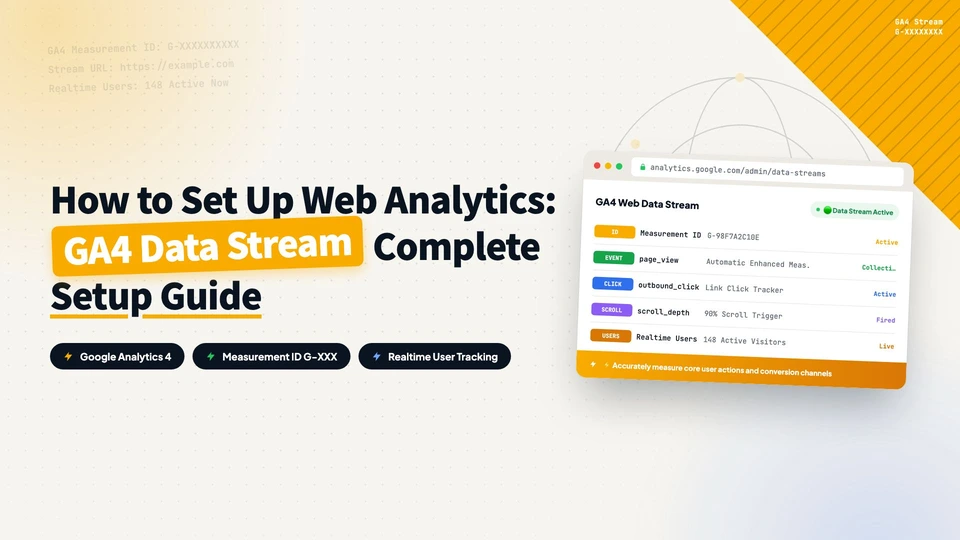
Running a standalone ecommerce site, whether you work on SEO, paid ads, or social media traffic, depends on data analysis. To see what visitors do after landing on your site, you need a GA4 (Google Analytics 4) data stream.
Here’s the full walkthrough video:
YouTube: How to create a GA4 data stream for your website
What is GA4?
GA4 is Google’s next-generation website analytics tool. It combines machine learning with cross-platform analysis, offering user path analysis, automatic insights, and flexible event tracking, all in service of your marketing strategy and business decisions.
Create the GA4 data stream
Creating a data stream is the first step toward analytics for your site. Here are the full steps, each with a screenshot.
Step 1: Log in to GA4
Log in with your Google account, search for Google Analytics in Google, and click the first result, Analytics Tools & Solutions for Your Business.
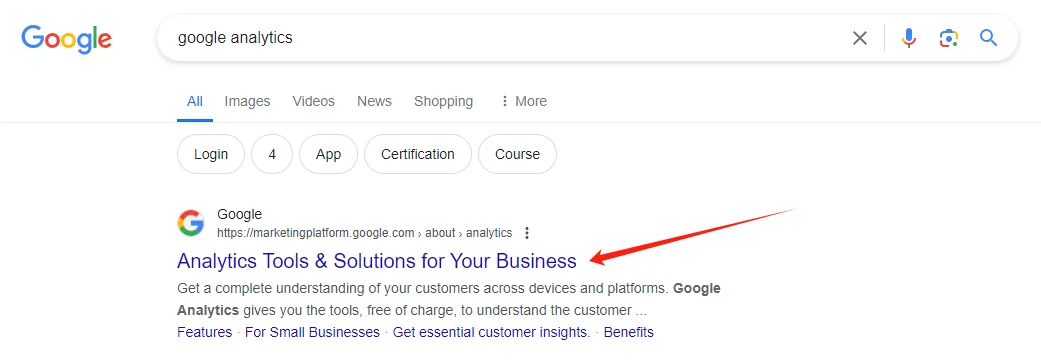
Step 2: Start measuring
On the GA4 homepage, click Start measuring.
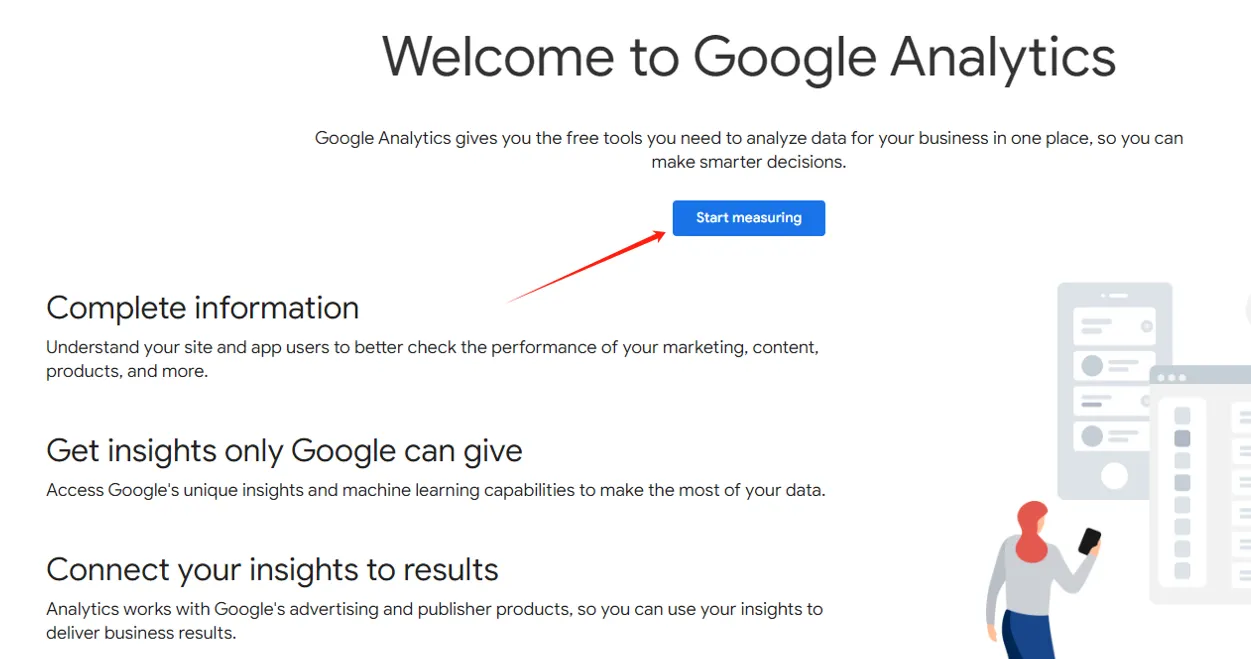
Step 3: Create an account
In Account creation, give your GA4 account a name.
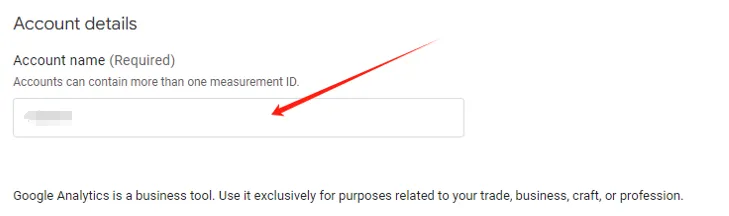
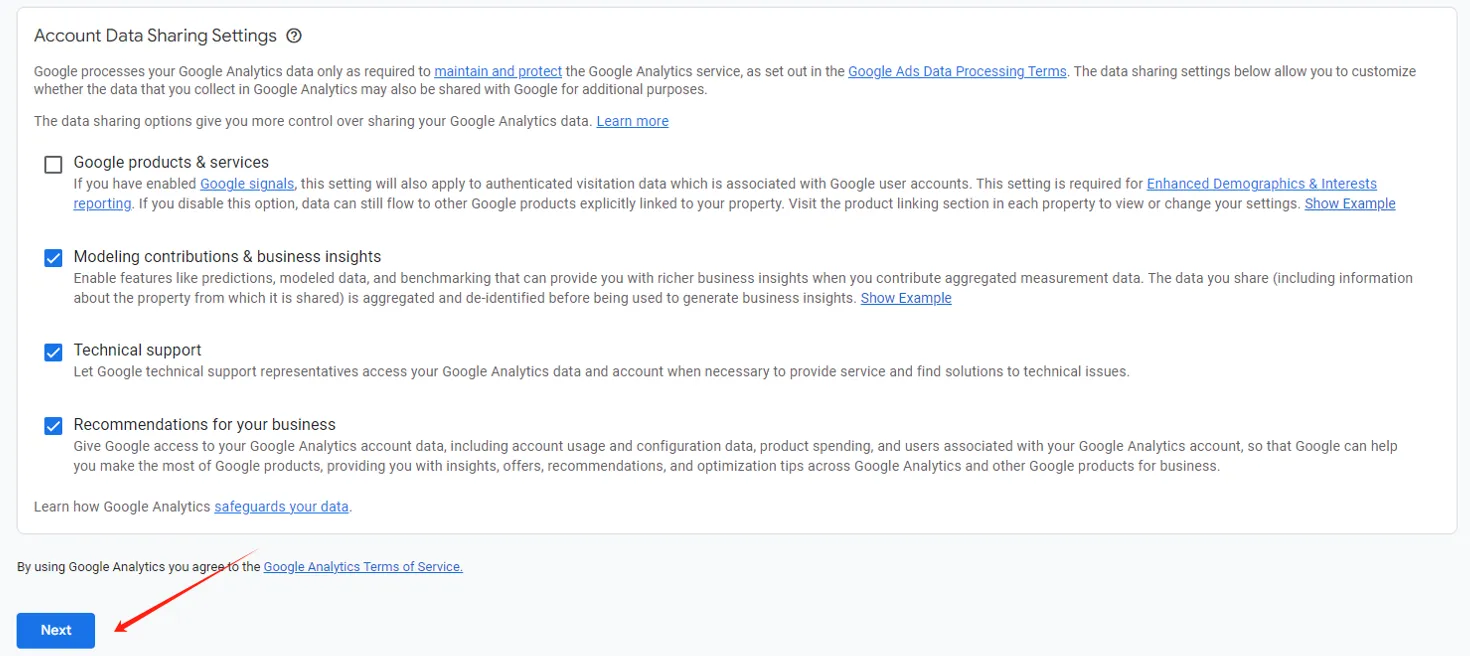
Step 4: Agree to data sharing
Click agree on the Data sharing settings terms.
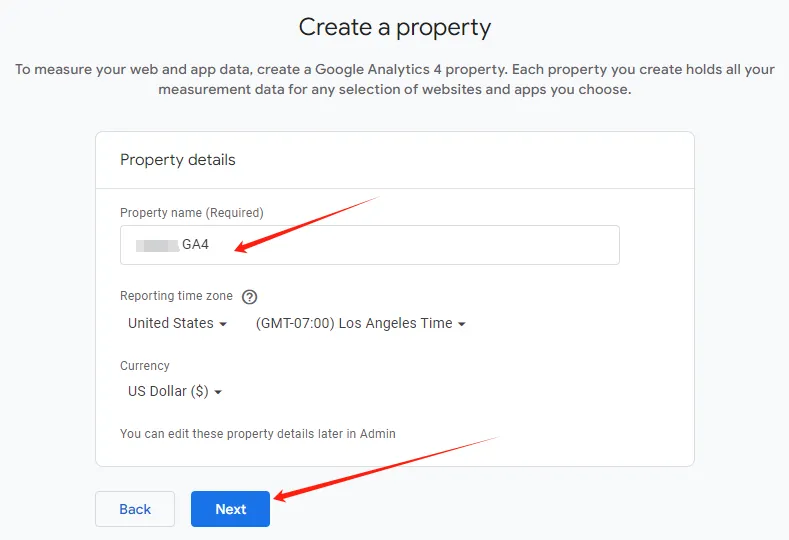
Step 5: Create a GA4 property
Create a GA4 property. Name it after your name, company, or website, as long as it’s easy to tell apart.
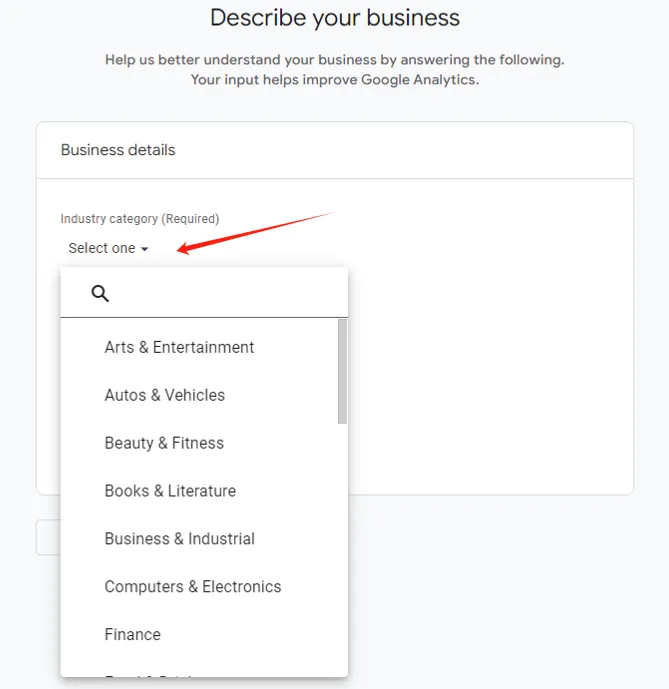
Step 6: Choose your industry
Select your industry category.
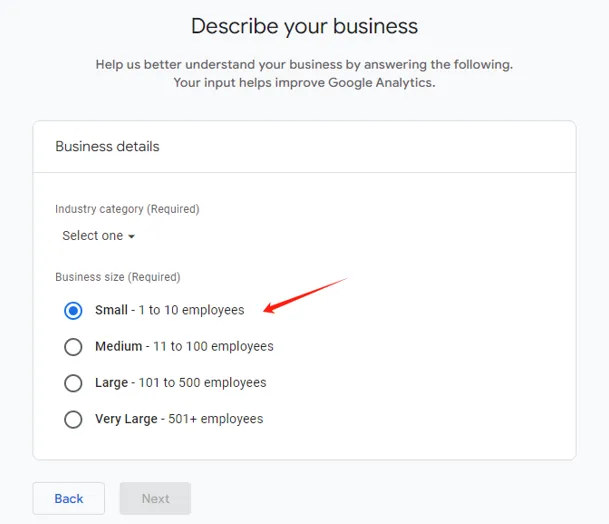
Step 7: Choose your business size
Select your business size.
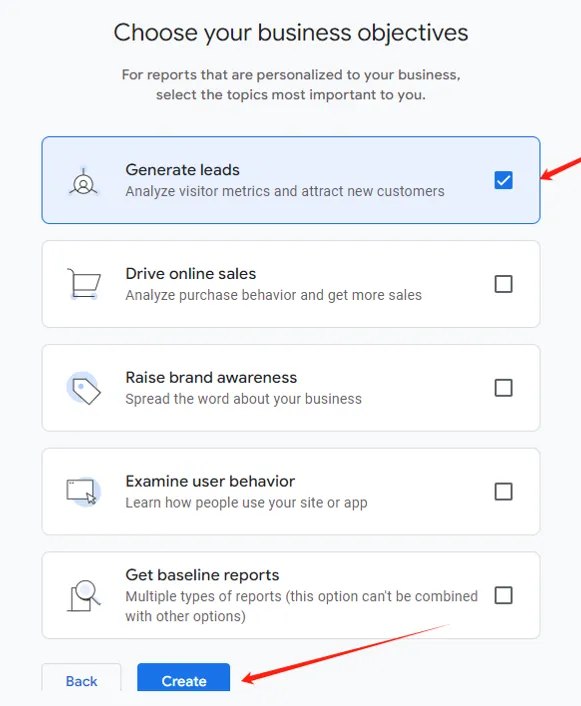
Step 8: Set business objectives
Choose what you want the website to achieve.
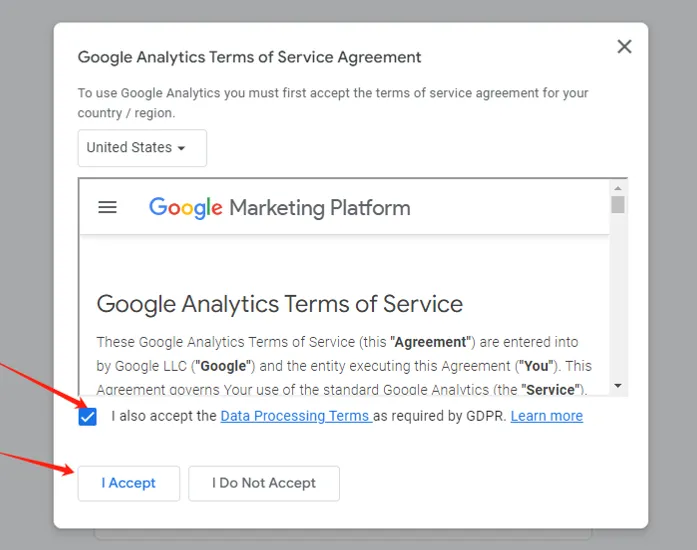
Step 9: Agree to Google’s service terms
Accept Google’s terms of service.
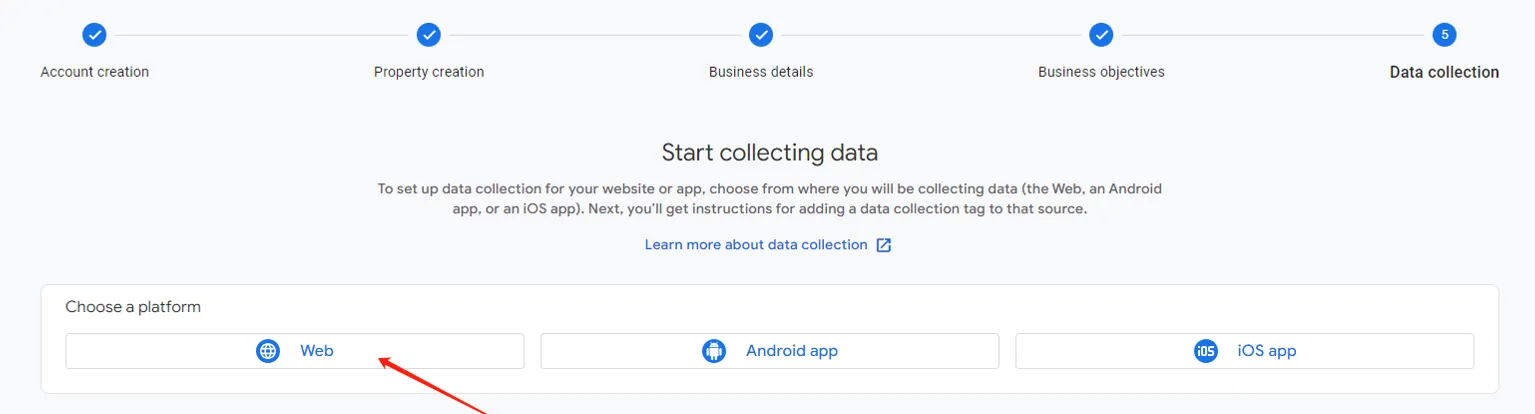
Step 10: Choose your data stream platform
Select Web, since we’re collecting data from a website.
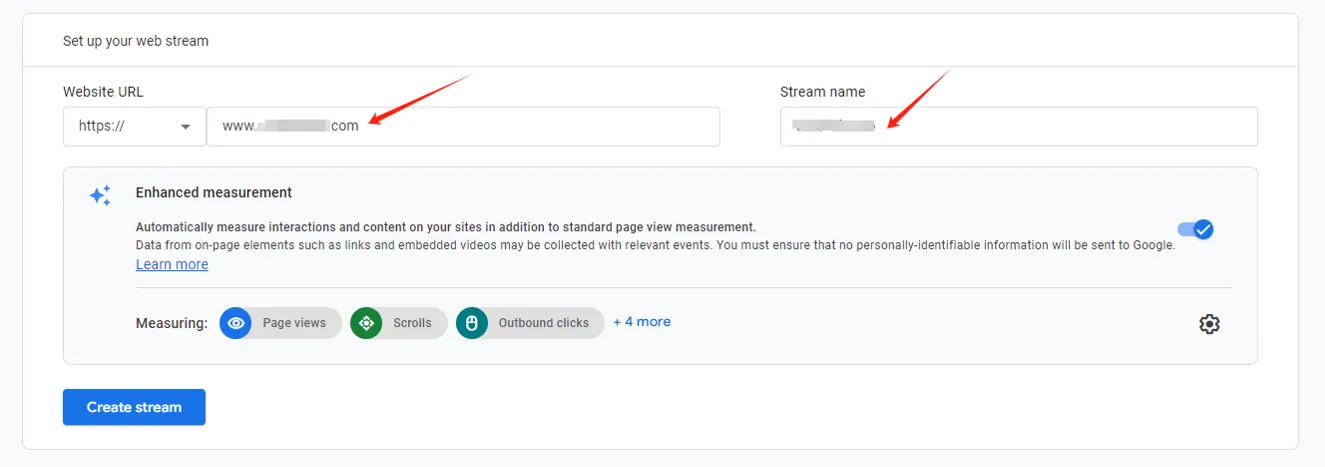
Step 11: Set up the web data stream
Enter the URL and a stream name, then click Create stream.
Once the data stream exists, the next step is connecting it to your site and setting up events and conversion goals. See this guide on installing and configuring Google Tag Manager (GTM). For indexing data, pair it with Google Search Console.
every Thursday.
Hosting reviews, builder comparisons, performance tips, and plugin picks — curated weekly for WordPress site owners and builders.