Send a test email to your Gmail account and read the Authentication-Results header to check whether SPF, DKIM, and DMARC all pass. This post explains how to read each of the three results, why everything can pass and mail still lands in spam, and how Authentication-Results compares with Google Postmaster Tools. It also covers the best practices that improve inbox rates once the authentication layer is solid, in a practical order.
Why Authentication-Results is worth checking
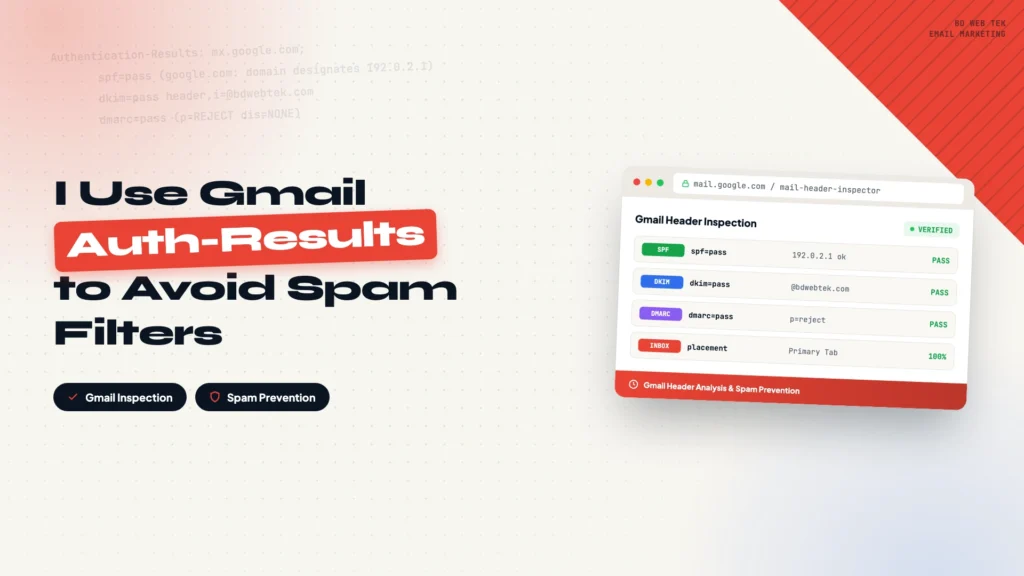
The most direct way to tell whether an email will land in spam is to send yourself a test message and read the Authentication-Results header in the original. It shows how Gmail verified the authenticity of the incoming email by checking three core protocols:
- SPF: whether the sending server is authorized
- DKIM: whether the signature is valid and the content untouched
- DMARC: whether the domain identity aligns
What you want to see looks like this:
Authentication-Results:
spf=pass
dkim=pass
dmarc=pass
Three pass results mean Gmail confirmed the sending server is authorized, the signature is valid, and the domain authentication is configured correctly. It tells you about the technical credibility of the email, which is the identity check Gmail runs. This is the essential first step in diagnosing deliverability issues, but it is not the whole picture.
How to check it
It takes under a minute, in four steps:
How to view it
Send a test email
Send from your sending domain to a Gmail address.
Open the email
Open the test message in Gmail.
Show original
Open the three-dot menu and pick Show original.
Read the results
Find Authentication-Results, or use the top summary.
The Show original page also displays an SPF, DKIM, and DMARC summary at the top. For a quick check, that summary is enough. For troubleshooting, read the full Authentication-Results header.
Understanding the three results
SPF
SPF answers one question: is this email sent from a server you authorized?
With a third-party email service (SendGrid, Mailgun, Amazon SES, and similar), a passing result usually looks like spf=pass smtp.mailfrom=mg.yourdomain.com, and pass means the sending server is on the SPF allowlist.
spf=fail usually comes from three causes: the SPF DNS record is missing, the current provider was never added to the record, or the record has a syntax error or conflict. Fix it by checking the SPF TXT record and making sure every sending channel is included.
DKIM
DKIM answers one question: was this email signed with your domain’s private key, and was the content modified in transit?
On success you see dkim=pass header.d=yourdomain.com, which means Gmail verified the signature and confirmed the email comes from your domain with the content intact. DKIM is the part of cold email setups that most often looks configured while not actually working. Emails still go out and the provider dashboard may show delivered, but Gmail treats a failed DKIM check as a clear risk signal.
Common DKIM failures: the key is misconfigured or was never generated, the selector does not match, or the provider-side DKIM settings are incomplete. Regenerate the key pair in the provider dashboard, confirm the public key is in DNS, and make sure the private key is active on the sending side.
DMARC
DMARC builds on SPF and DKIM and answers one question: is the domain in the From address the same as the domain that passed SPF and DKIM? It also tells the receiver what to do when authentication fails.
What you want is dmarc=pass header.from=yourdomain.com, meaning the domain aligns and the policy is active. If SPF and DKIM both pass but DMARC still fails, the problem is usually domain alignment, for example when the From address uses one domain while the signing or return path uses another. Check the DMARC policy setting and the alignment mode.
Can it predict the spam folder?
No. Gmail does not tell you that an email has an 80% chance of landing in spam. Authentication-Results does one thing: it tells you whether the technical authentication passed.
The final inbox or spam decision also weighs domain reputation, IP reputation, sending behavior (frequency and volume trends), user engagement (opens, replies, deletions), spam complaint rate, and content quality.
Authentication-Results only covers the identity layer. Passing authentication does not guarantee the inbox, but failing it means the most basic part is not solid yet, so hold off on polishing copy and sending cadence until this is fixed.
Why everything passes and the email still lands in spam
This is the part that confuses people the most: SPF, DKIM, and DMARC all pass, and the email still goes to spam. Authentication is only the entry barrier. Gmail also looks at:
- Domain reputation: a newly registered domain that suddenly sends a lot of mail has a low score, and even fully authenticated mail can be downgraded
- Sending behavior: a steady, gradual increase in volume is much safer than a sudden blast
- User engagement: Gmail watches whether recipients open, reply, delete, or report, and poor engagement numbers override passing authentication
Three pass results only mean you cleared the first gate, with no technical reason for rejection. Domain reputation, sending strategy, and content quality come after.
Authentication-Results vs Google Postmaster Tools
The two tools answer different questions, and they work best together:
| Dimension | Gmail Authentication-Results | Google Postmaster Tools |
|---|---|---|
| Granularity | Single email | Domain level, long-term trend |
| What it shows | SPF, DKIM, DMARC results | Domain reputation, Spam Rate, delivery trends |
| Use case | Troubleshoot one test email | Monitor overall sending quality and reputation |
| Can it predict spam | No | Indirect reference |
| Data source | Email header | Official Gmail aggregate data |
Authentication-Results fits single-message troubleshooting, while Postmaster Tools handles long-term domain reputation monitoring.
Best practices for better inbox rates
To get email delivered to the Gmail inbox reliably, work through this order:
- Configure SPF correctly and include every sending channel in the record
- Enable DKIM signing and verify it shows pass in Gmail
- Publish a DMARC record, starting from p=none for monitoring
- Use Authentication-Results to confirm all three pass
- Register Google Postmaster Tools and watch domain reputation and Spam Rate
- Warm up new domains and mailboxes gradually instead of sending a lot at once
- Avoid untargeted blasts and keep complaint and bounce rates low
Gmail Authentication-Results is the first gate for checking email technical credibility, and it helps you locate SPF, DKIM, and DMARC configuration problems quickly. Passing authentication does not guarantee the inbox. Reliable deliverability needs correct authentication, good domain reputation, a sensible sending strategy, and quality content, all four together.
every Thursday.
Hosting reviews, builder comparisons, performance tips, and plugin picks — curated weekly for WordPress site owners and builders.