What Elementor is, a detailed free vs Pro comparison (Theme Builder, Popup Builder, Form Builder, WooCommerce Builder, dynamic content), and step-by-step install instructions for both the free plugin and Elementor Pro via ZIP upload.
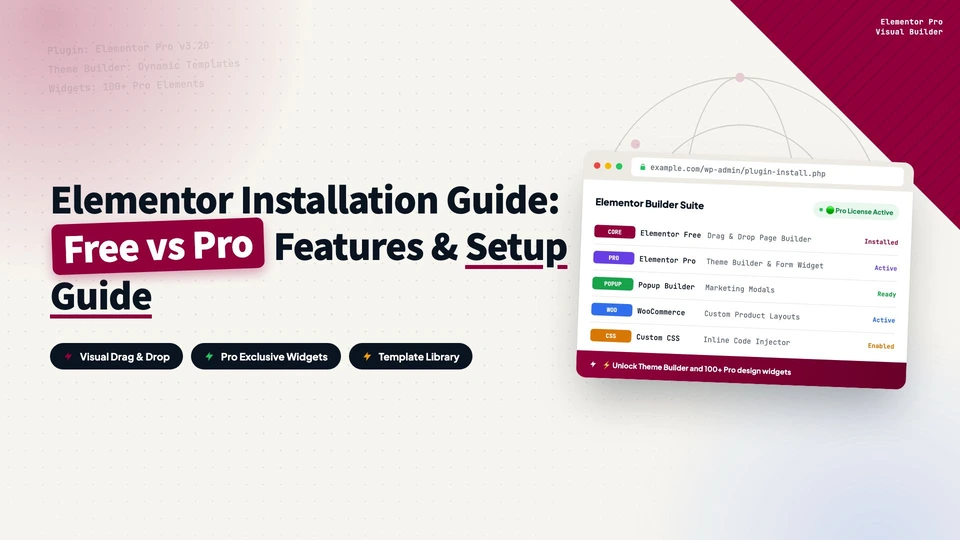
Elementor is the most popular WordPress page builder, used by over 16 million websites. You design pages visually: drag, drop, resize, and style everything in real time, with instant previews of what visitors will see. No code, no wrestling with the default block editor.
Elementor turns WordPress into a visual design tool. You can build landing pages, homepages, about pages, contact forms, popups, headers, footers, archive templates, and even entire WooCommerce stores, all without touching a line of code.
If you want full creative control over how your WordPress site looks without hiring a developer or learning CSS, Elementor makes it possible.
Elementor Free vs Elementor Pro: What Is the Difference?
Elementor comes in two tiers: a free version and Elementor Pro. The free version is genuinely capable: it gives you the core drag-and-drop editor, around 40 basic widgets (headings, images, buttons, videos, dividers, etc.), and responsive design controls. For a simple brochure site, it may be enough.
If you are building a professional website, Elementor Pro adds features that change the game. Here is what Pro adds:
| Feature | Elementor Free | Elementor Pro |
|---|---|---|
| Drag-and-drop editor | Yes | Yes |
| 40+ basic widgets | Yes | Yes |
| Responsive design controls | Yes | Yes |
| Theme Builder (headers, footers, templates) | No | Yes |
| Popup Builder | No | Yes |
| Form Builder | No | Yes |
| WooCommerce Builder | No | Yes |
| Dynamic content (custom fields, ACF) | No | Yes |
| Loop Builder (blog grids, archive lists) | No | Yes |
| Global widgets and custom CSS | No | Yes |
| Motion effects and custom animations | No | Yes |
| 100+ Pro widgets (flip box, price table, etc.) | No | Yes |
The Pro Features That Matter Most
Theme Builder
This is the one that matters. With the Theme Builder, you design the site’s header, footer, single post template, archive pages, 404 page, and search results page, all inside the Elementor editor. Without it, you are stuck with whatever the WordPress theme gives you, or you have to write PHP template files manually.
Popup Builder
Build popups for email signups, promotional banners, exit-intent offers, login forms, and more. Full design control plus advanced targeting rules: show a popup only on specific pages, after the user scrolls to a certain depth, when they are about to leave, or after a set time on the page.
Form Builder
Create contact forms, multi-step forms, and surveys with drag-and-drop, and connect them directly to Mailchimp, ActiveCampaign, ConvertKit, and other email marketing platforms without extra plugins.
Dynamic content
If your site uses custom fields or Advanced Custom Fields (ACF), Pro can pull that structured data into your designs dynamically. This is useful for directory sites, listing sites, real estate sites, and any project that stores content as structured data.
The free version is a good starting point to test whether Elementor’s workflow suits you. But any serious website project will likely end up needing Pro. Theme Builder and Form Builder alone are worth the price.
Getting Elementor Pro
If you are ready to use Elementor’s full capabilities, get Pro from the Elementor website. Pro is a yearly subscription that covers updates, support, and access to all Pro features and templates.
Note: Elementor Pro is a separate plugin, not a replacement for the free version. You install both: the free Elementor provides the core editor, and Elementor Pro layers the paid features on top.
How to Install Elementor Free and Pro
The installation differs between the two versions.
Install Elementor free
The free version installs from the WordPress dashboard in seconds:
Go to Plugins → Add New Plugin in the WordPress sidebar, search for Elementor, and find Elementor Website Builder (developer: Elementor.com), usually the first result. Click Install Now, then Activate.
The free editor is now available on any page or post.
Install Elementor Pro
Elementor Pro is not in the WordPress plugin directory because it is a paid product. The flow is different:
Buy Pro on the Elementor website. After purchase, log into your Elementor account and go to the Downloads page. Download the Elementor Pro ZIP file to your computer.
Back in WordPress, go to Plugins → Add New Plugin and click Upload Plugin at the top. Click Choose File, select the ZIP file, click Install Now, then Activate.
Important: install and activate the free Elementor before Elementor Pro. Pro extends the free version and cannot run standalone.
Verify the installation
After both plugins are installed, go to Elementor → License in the WordPress sidebar. If Pro is active, you will see the license status. You can also create a new page and click Edit with Elementor: if the editor loads and all Pro widgets are visible, everything is ready.
Elementor changes how you work with WordPress. Things that used to require custom themes, page templates, and CSS now happen with drag-and-drop. The free version is a solid start; Pro removes the remaining limits and turns WordPress into a proper design platform.
Next: a tutorial on the editor interface and building your first page.
every Thursday.
Hosting reviews, builder comparisons, performance tips, and plugin picks — curated weekly for WordPress site owners and builders.