Table of Contents

How to Block IP Address in WordPress?

This blog explains how to block IP address in Wordpress from specific countries on SiteGround and Hostinger. It covers two methods: using SiteGround’s built-in dashboard feature and configuring the .htaccess file for Hostinger. The step-by-step guide includes logging into the hosting service, accessing security settings, and implementing country-specific IP blocks. It also provides detailed instructions on obtaining IP lists from IP2Location and integrating them into your .htaccess file. This ensures that only desired regions can access your website, enhancing security and control over site traffic.

When your website goes live, it’s generally accessible to users worldwide. However, there might be instances where you want to block IP address from specific countries. To address this, you can set up firewall measures to block IP addresses from those countries. This article will explain two methods to set up firewalls on Siteground and Hostinger servers:

  1. Using the server’s built-in features: This guide will show how to set up on SiteGround. If you use a different server, you should check with their customer support to see if such features are available in their dashboard.
  2. Using the .htaccess file: If your hosting provider does not offer built-in firewall features, you can manually set up firewall rules using the .htaccess file. This guide will demonstrate the steps for Hostinger.

Block IP Address Using SiteGround's Dashboard

Step 1. Log in to SiteGround, select the website you want to block IP address, and click “SITE TOOLS.”

SiteGround website showing Site Tools dashboard

Step 2. In the SITE TOOLS dashboard, click on “Blocked Traffic” under the “Security” section on the left sidebar.

SiteGround dashboard with Blocked Traffic settings

Step 3. Click on “BLOCK COUNTRY,” select the countries you want to block, and click “BLOCK.” You can repeat this step to block multiple countries.

Block IP address on Siteground

Step 4. You have successfully blocked a country. To unblock, click the trash icon in the bottom right.

Block IP address successfully on Siteground

To block IP address using SiteGround’s built-in feature is very convenient. However, not all hosting providers offer such features. It’s recommended to check with your provider’s customer support or search their website for related documentation, such as “Block country IP,” “Block country,” “Block IP,” etc. Now, let’s move on to the more universal method using the .htaccess file.

Blocking Country IPs Using the .htaccess File on Hostinger

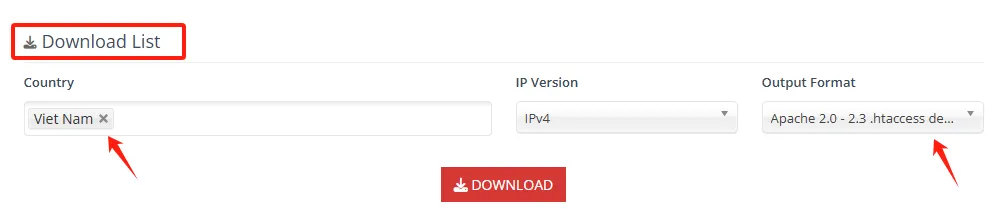
Step 1. Visit the IP2Location Firewall IP list tool, scroll down to “Download list,” select the country, choose the appropriate format for your web server in the “Output Format” dropdown (e.g., “Apache 2.0-2.3 .htaccess deny” for Hostinger), and click “DOWNLOAD.”

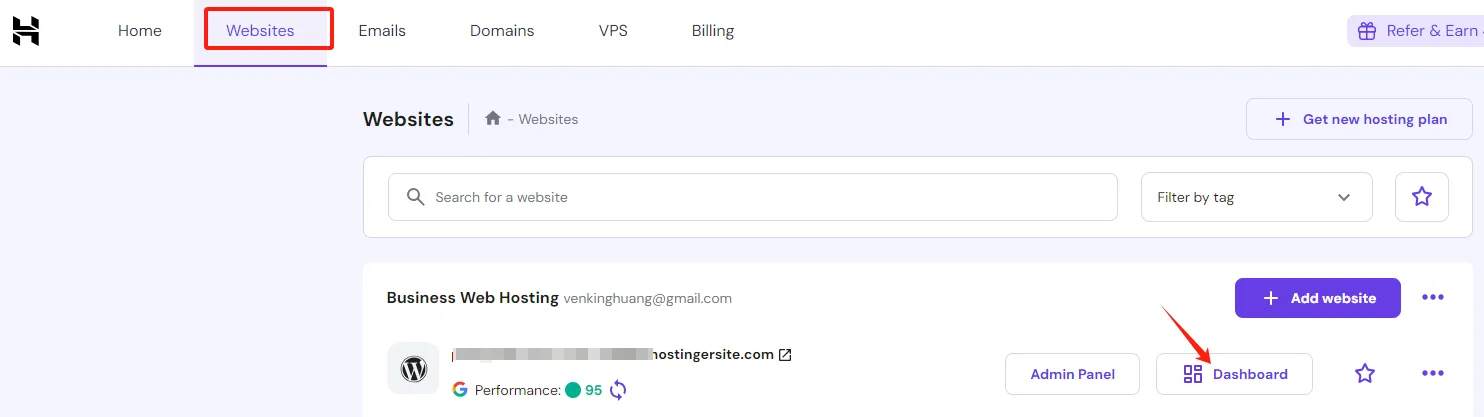
Step 2. Log in to Hostinger, go to the Dashboard of the website you want to configure.

Hostinger website showing the main dashboard

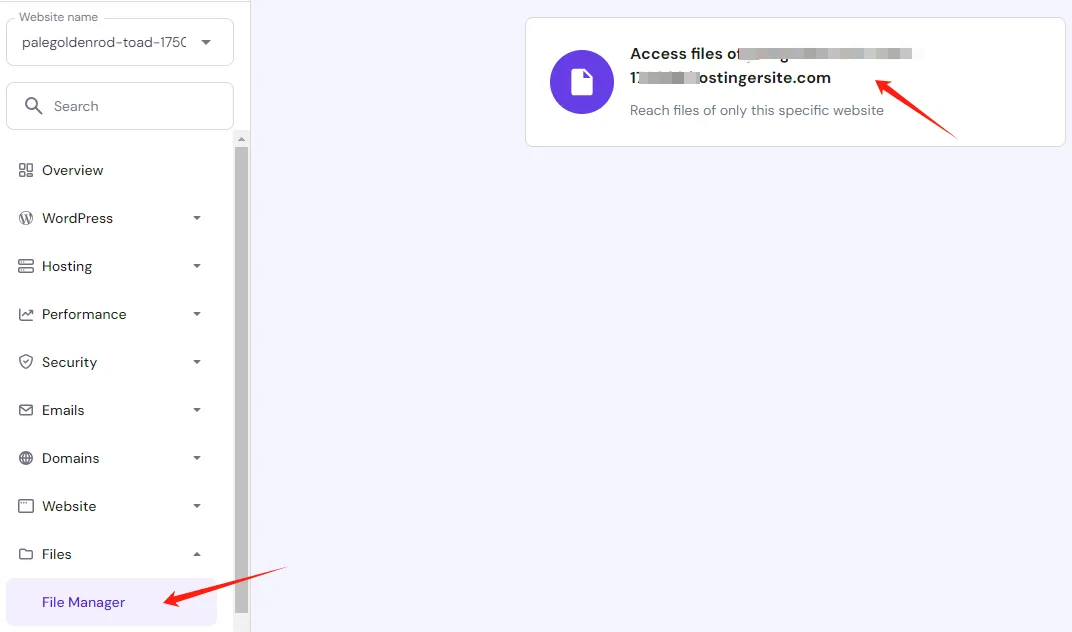
Step 3. Access the “File Manager.”

Accessing website files in Hostinger File Manager

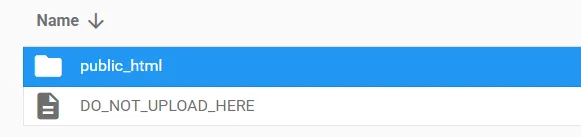
Step 4. Double-click on “public_html.”

Hostinger File Manager accessing public_html folder

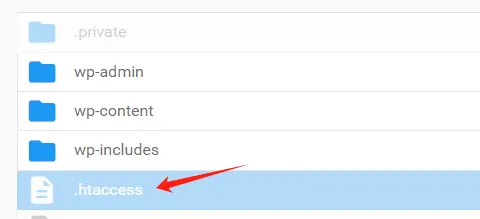
Step 5. Locate and double-click the .htaccess file.

Hostinger File Manager with .htaccess file

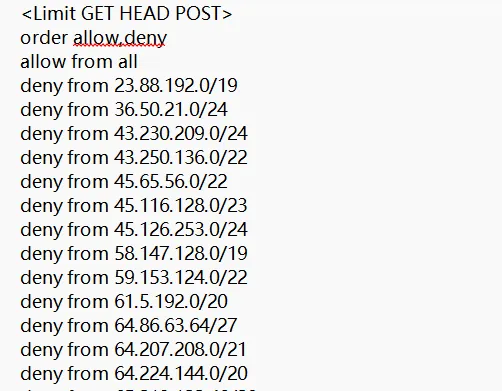
Step 6. Open the downloaded file from IP2Location, which contains many IP addresses.

IP2Location Firewall IP list tool interface

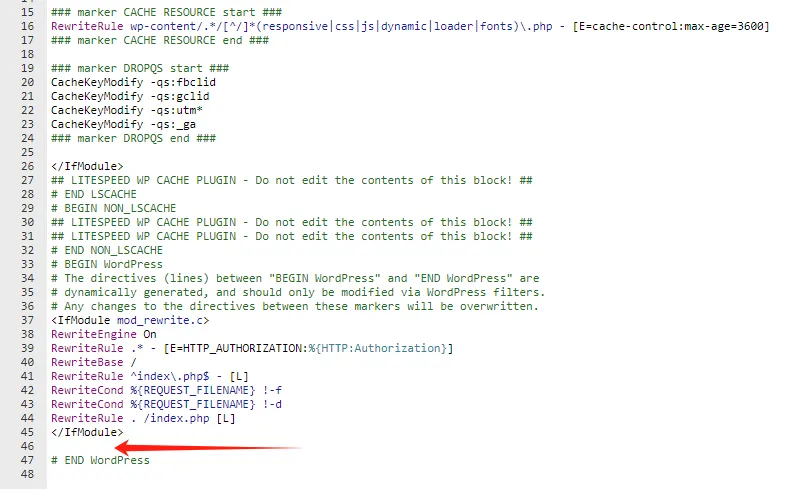
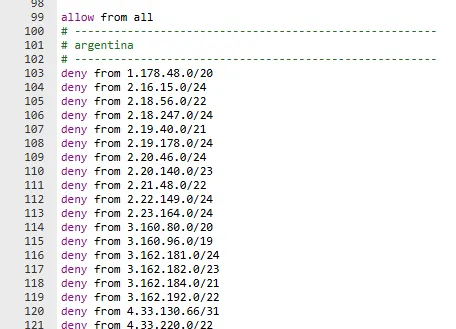
Step 7. In the .htaccess file, scroll to the bottom, and paste the IP addresses from the IP2Location file. You can separate multiple countries with “#————-” like this:

Adding firewall IP list in Hostinger File Manager

Step 8. Save the .htaccess file by clicking the save button in the top right.

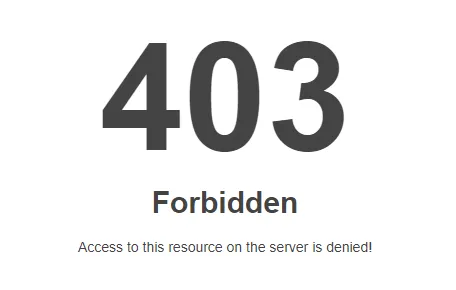
Step 9. Test by accessing your website from an IP address in the blocked country to ensure it’s working.

403 Forbidden error page

By following these steps, you can effectively block IPs from specific countries, enhancing your website’s security and control.

author avatar
Danny SEO
Danny Ni is an experienced SEO specialist with expertise in WordPress and digital marketing. Currently working at a company, he is responsible for SEO optimization, website development, and managing multiple social media platforms. With a strong focus on SEO, WordPress, and digital marketing, Danny helps businesses enhance their online presence and grow their digital footprint.

Share on:

Share on: