Why Hello Elementor wins on compatibility and performance, how to install and activate it, delete default themes, and set up a child theme to protect your customizations from future updates.
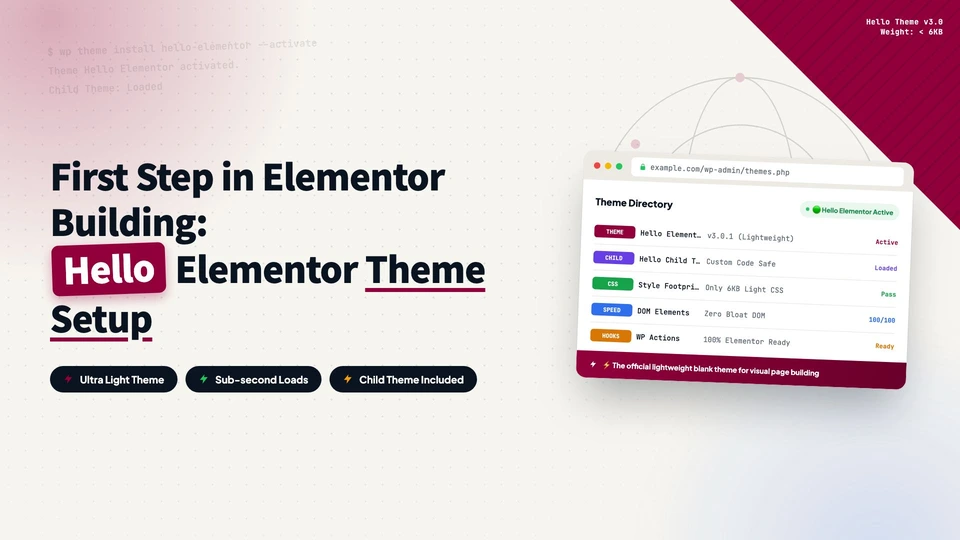
Elementor is a page builder. It controls the layout and design of individual pages, but it still needs a WordPress theme underneath to manage the global structure: headers, footers, post templates, and site-wide styling. Pick the wrong theme and everything fights you. Pick the right one and you barely think about it.
We have tried many themes over the years. Today we use one almost exclusively: Hello Elementor. If you build with Elementor, install it. It is built by the Elementor team, it is the fastest-loading theme for Elementor, and it removes the single biggest headache WordPress users face: theme-plugin compatibility issues.
Why Hello Elementor?
Two reasons: compatibility and performance.
Compatibility: Built by the Elementor Team
Hello Elementor is developed and maintained by the same team that builds the Elementor page builder, so it is designed for Elementor from the ground up. No surprises after an update, no mysterious JavaScript conflicts. Other themes, even well-known premium ones, can introduce incompatibilities that result in error messages, broken layouts, or hours of debugging.
If you have ever spent an afternoon trying to figure out why a perfectly good Elementor section renders differently on the live site than in the editor, the theme was likely the culprit. Hello Elementor removes that variable entirely.
Performance: A Truly Lightweight Theme
Hello Elementor is often described as a blank canvas theme, and that is exactly what makes it fast. Most WordPress themes ship with dozens of built-in features you will never use: custom widgets, pre-built layouts, bundled slider plugins, elaborate theme options panels, and layers of CSS and JavaScript that load on every page whether you need them or not. All of that adds weight.
Hello Elementor takes the opposite approach. It loads almost nothing by default, just the bare minimum a WordPress theme needs to function. The result is a smaller page size and fewer HTTP requests, which means faster load times out of the box. Since Elementor handles all the design work, you sacrifice nothing by keeping the theme minimal.
A minimal theme means fewer bytes to download, fewer files to parse, and less code for the browser to execute. Hello Elementor strips away everything unnecessary so your site starts fast and stays fast, even as you add content.
How to Install Hello Elementor
The installation takes about two minutes. Follow these steps.
In the WordPress dashboard sidebar, go to Appearance and click Themes. You will see the currently installed themes. A fresh WordPress install usually ships with a default theme like Twenty Twenty-Five, which we will not use.
Click Add New Theme at the top of the themes page to open the WordPress theme directory. Type Hello Elementor in the search box. In most cases you do not even need to search, it usually sits near the top.
Click the Hello Elementor card, then Install at the bottom right. When the button changes to Activate, click it to make Hello Elementor the active theme.
After activation the site may look empty. That is normal: Hello Elementor is a minimal blank canvas. The visual design comes from Elementor, which you configure next.
Clean Up: Delete Default Themes
After activating Hello Elementor, go back to Appearance → Themes. WordPress pre-installs a few default themes, usually three. They serve no purpose, so delete them all.
Click the default theme card to open its details, then click Delete at the bottom right. Repeat for every default theme.
When done, Hello Elementor should be the only installed and active theme. This keeps the server clean, closes the security holes that unused old themes leave open, and makes theme management straightforward.
Do not delete a theme while it is active. Make sure Hello Elementor is activated first, then remove the others.
Install the Hello Elementor Child Theme
Hello Elementor is installed and active, but one more step saves you a real headache later: installing a child theme.
When Hello Elementor receives an update and you click update, any custom code or styles you added directly to the theme files get overwritten and lost. A child theme solves this. It inherits everything from the parent theme (Hello Elementor) while giving you a separate, safe space for your customizations. When the parent updates, your child theme and all your work stay intact.
Think of the child theme as insurance for your customizations. You may not need it today, but the first time the parent updates and all your changes survive, you will be glad you set it up.
How to install the child theme
The Hello Elementor child theme is installed by uploading a ZIP file, not by searching the theme directory.
Download the Hello Elementor Child theme ZIP, then follow these steps:
Go to Appearance → Themes in the WordPress dashboard. Click Add New Theme, then Upload Theme at the top of the page. Click Choose File and select the ZIP file you downloaded. Click Install Now, then Activate when the install finishes.
Your site now runs on the Hello Elementor child theme, with the parent theme driving everything underneath. You are ready to start building with Elementor.
From a fresh WordPress install to a properly configured theme environment takes about five minutes. Hello Elementor plus the child theme gives you a fast, compatible, stable foundation, which is exactly what you want before designing your first page.
Next step: install the Elementor plugin and start building your first page.
every Thursday.
Hosting reviews, builder comparisons, performance tips, and plugin picks — curated weekly for WordPress site owners and builders.