A wrong DNS record rarely announces itself as a DNS problem. The site will not load, mail never arrives, or a certificate refuses to issue. This guide explains what A, AAAA, CNAME, MX, TXT, NS, CAA, and SRV records each do, then shows how to add, edit, and verify them in Alibaba Cloud DNS and Cloudflare, including the fields each console asks for and the mistakes that break resolution most often.
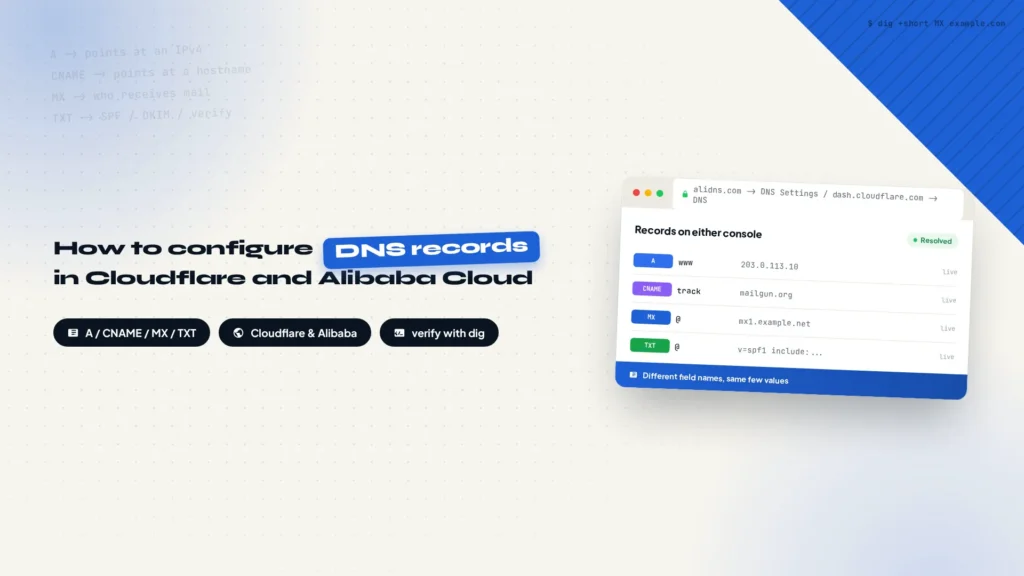
A broken DNS record rarely looks like a DNS problem. The site will not load, business email never arrives, an SSL certificate refuses to issue, or every outgoing message lands in spam, and you end up debugging the wrong thing. This article walks through what the common record types are for, then shows how to add, edit, and verify them in Alibaba Cloud DNS and Cloudflare.
What a DNS lookup actually does
Domains are for people, servers only understand IP addresses. A DNS lookup is the translation step in between, and it passes through several layers of caching. If any one of those layers hands back the wrong answer, the domain appears broken even though the record is fine.
One lookup, end to end
Browser / mail client
→
Local DNS cache
→
Recursive resolver
→
Authoritative DNS
Alibaba Cloud / Cloudflare
→
Answer returned
Every record you type into an Alibaba Cloud or Cloudflare console lives on the authoritative nameservers. The recursive resolver does the asking on the client’s behalf, then caches the answer for as long as the TTL allows without asking again. That caching is why a record change can look like it did nothing. Lowering the TTL to 300 before touching anything is the standard fix, and the reasoning is in Why lower your DNS TTL to 300 before a migration.
What each record type is for
Day to day you only touch the types below. Understanding what problem each one solves makes the fields in either console far less confusing.
| Record type | What it does | What the value looks like | Common use |
|---|---|---|---|
| A | Points a domain at an IPv4 address | 12.34.56.78 | Web server, VPS |
| AAAA | Points a domain at an IPv6 address | 2001:db8::1 | Servers with IPv6 enabled |
| CNAME | Points a domain at another domain name and follows it | a target hostname, such as mailgun.org | Email tracking, www to apex, CDN |
| MX | Tells the internet which server receives mail for the domain | mx1.example.net, prefixed with a priority number | Business email |
| TXT | Holds a text string, mostly for provider verification | v=spf1 include:… , v=DKIM1… | SPF, DKIM, DMARC, domain ownership |
| NS | Delegates the domain to specific nameservers | ns1.example.com | Switching DNS providers |
| CAA | Restricts which certificate authorities may issue for the domain | 0 issue “letsencrypt.org” | Certificate issuance control |
| SRV | Publishes the host and port for a specific service | priority weight port target | Collaboration tools, game servers |
First, check where your records are hosted
A domain has its records in exactly one place: whichever DNS provider the NS records point at. Edit the wrong console and nothing you type will ever resolve. Querying NS is the quickest way to find out where you actually are:
dig +short NS example.com
If the answer ends in cloudflare.com, DNS is hosted on Cloudflare. If it ends in alidns.com or hichina.com, it is on Alibaba Cloud DNS. A dnspod.net suffix means Tencent Cloud DNSPod. When a domain is registered through Alibaba Cloud and the nameservers were never changed, the records live in the Alibaba Cloud DNS console, and anything you add in Cloudflare does nothing.
Adding records in Alibaba Cloud DNS
Open the Alibaba Cloud console, find Alibaba Cloud DNS under the domain and website section, select the domain, and click DNS Settings and then Add Record.
The fields work like this:
- Record Type: A, CNAME, MX, TXT, AAAA, and CAA all live in the same dropdown
- Host: a relative name, with @ for the apex, www for the www prefix, and mail for the mail prefix
- ISP Line: leave it on Default; per-carrier routing is an advanced option most setups never need
- Record Value: paste the value your provider gave you, whole, with no edits
- TTL: 10 minutes by default, and the smallest value offered is in the dropdown
Click Confirm to save the record.
The host field is where most mistakes happen. To configure mail.example.com, entering mail is enough. Paste the full hostname and the panel treats it as mail.example.com.example.com, which resolves to nothing. The apex and www are two separate host entries, so an A record for each is what makes both example.com and www.example.com load.
Adding records in Cloudflare
Log into Cloudflare, pick the domain, open DNS in the left menu, click the Records tab, then Add record.
The fields work like this:
- Type: A, AAAA, CNAME, MX, TXT, NS, or CAA; the remaining fields change with it
- Name: @ or a subdomain prefix, with the full name filled in beside the field
- IPv4 Address: the server IP for an A record; a CNAME shows Target instead, where the hostname goes
- Proxy Status: whether the record goes through Cloudflare, and an A record for the main website belongs on Proxied (orange cloud); mail records are covered in the note below
- TTL: Auto uses the Cloudflare default, or set a value explicitly
Click Save to keep the record.
The orange and grey cloud only mean something on A, AAAA, and CNAME records. With the proxy on, requests reach Cloudflare first and are forwarded to your origin, the server IP stays hidden, and caching and protection come along for free. With it off, visitors connect to your server directly and Cloudflare only answers with the address. The proxy also means changing a server IP never requires a DNS edit, which is the property that makes it worth using, and the reasoning is in Why experienced developers prefer hosting DNS on Cloudflare.
Warning
Keep every mail-related record on DNS Only. A sending-domain CNAME or TXT record proxied through the orange cloud is invisible to the mail provider, so verification never passes. MX records cannot be proxied at all and Cloudflare forces DNS Only on them. An A record for the main website has no such restriction and can stay proxied.
Confirming a record actually resolves
Your own browser is the last thing to trust here, since both the local cache and the recursive resolver will happily lie to you. Querying with dig gives you the authoritative answer, and pointing it at a public resolver rules out your network entirely:
# Look up an A record
dig +short www.example.com

# Query a public resolver instead of the local cache
dig +short @1.1.1.1 www.example.com

# Look up mail records
dig +short MX example.com
dig +short TXT example.com
When the answer matches what you typed in the console, the record is live. An empty answer means the record may not have been saved, or that you are querying a provider that does not host the zone; check the NS records again. An old IP address coming back means the previous TTL has not expired, so wait it out. That wait is exactly why lowering the TTL before a change is worth the extra step.
The mistakes that break things most often
- A full hostname entered in the host field, when the console expects only the prefix or @ for the apex
- An A record for www without one for the apex, so the bare domain still fails to load
- A CNAME and any other record sharing the same host, which the spec does not allow and most consoles reject outright
- Mail-related records left proxied in Cloudflare: MX and TXT cannot be proxied, and a proxied CNAME fails verification
- A TXT value pasted in pieces, leaving a stray space in the middle, or wrapped in quotes that the provider does not accept
- MX records saved without a priority number, or several MX records given the same priority
- A record deleted without checking who else depends on it, which is how email open tracking quietly drops to zero
Wrapping up
The records themselves are simple. What makes them error-prone is that every provider names the fields differently, and the symptoms show up somewhere else entirely. Fill in the fields as described for either console, then verify with dig, and most DNS problems stop being mysteries. If the A record is meant to point at a server you do not have yet, start with a VPS: Hostinger hands you the server IP in its control panel.
If the records you are about to add are for an email service, continue with How to set up a Mailgun sending domain, which relies mainly on CNAME and TXT records. Whether mail reaches the inbox also depends on SPF, DKIM, and DMARC, covered in What Are SPF, DKIM, and DMARC?. And if you are pointing a subdomain at a server for the first time, How to Create a Subdomain in Cloudflare covers the Cloudflare side, while how to register a domain and set up DNS on NameSilo, Namecheap, and GoDaddy covers registrars.
every Thursday.
Hosting reviews, builder comparisons, performance tips, and plugin picks — curated weekly for WordPress site owners and builders.