GA4 reports limit your analysis options. Exporting the data to BigQuery lets you query every event with SQL. This guide covers confirming the GA4 property, creating the BigQuery Link, choosing Daily export, and verifying that events_ tables arrive.
Why connect GA4 to BigQuery
GA4 reports are fine for trends and routine monitoring, but they get restrictive for deeper analysis: data retention is limited, custom queries are constrained by report dimensions, and you cannot join website data with other sources. Once GA4 data lands in BigQuery, every event is stored in daily tables you can query with SQL, and you can run it side by side with Search Console exports in the same project.
This post walks through the whole setup: confirming the GA4 property, creating the BigQuery Link, choosing the export type, and checking that data actually arrives. Everything happens in the browser, no code required.
Step 1: Confirm the GA4 property
Open Google Analytics and select the GA4 property for yourwebsite.com.
Make sure it is a GA4 property, not Universal Analytics. Universal Analytics has no BigQuery export option, only GA4 supports this link. If the account holds several properties, confirm the right one is selected before moving on.
Step 2: Open BigQuery Links
In GA4, click Admin (the gear icon in the bottom-left corner), find Product links, then open BigQuery Links.
Step 3: Create the Link
Click the Link button and work through the setup in order:
Choose BigQuery project
Select yourwebsite-dataset. If the project does not exist yet, create it in Google Cloud Console first. The project and dataset steps are covered in the Search Console guide: How to export Google Search Console data to BigQuery.
Dataset location
Pick US, matching your BigQuery dataset location. If GA4 and BigQuery use different regions, the link fails or the data is delayed.
Data streams and events
Keep the default settings. GA4 automatically includes all data streams under the property.
Export type
Two options are available, and Daily is the recommended one:
| Export type | Characteristics | Best for |
|---|---|---|
| Daily | Batch export once per day, lower cost | SEO analysis, weekly and monthly reports, page analysis |
| Streaming | Near real-time data, higher cost | Live monitoring, second-level response needs |
For SEO analysis with weekly reports, monthly reports, and page analysis, Daily is enough. Streaming delivers second-level data and costs more, so there is no need to select it.
Leave User data unchecked below Export type, and leave Review and submit unchecked too. Then submit.
Step 4: Submit and wait for data
After submitting, the LINK CREATED message confirms the link is live.
Then wait, usually a few hours up to 24 hours. Back in BigQuery, the structure looks like this:
yourwebsite-dataset
├── searchconsole_yourwebsite
└── analytics_xxxxxxxxxThe analytics_ dataset holds the GA4 export. If Search Console data is already linked, both datasets sit side by side for cross-querying.
Step 5: Confirm the GA4 data
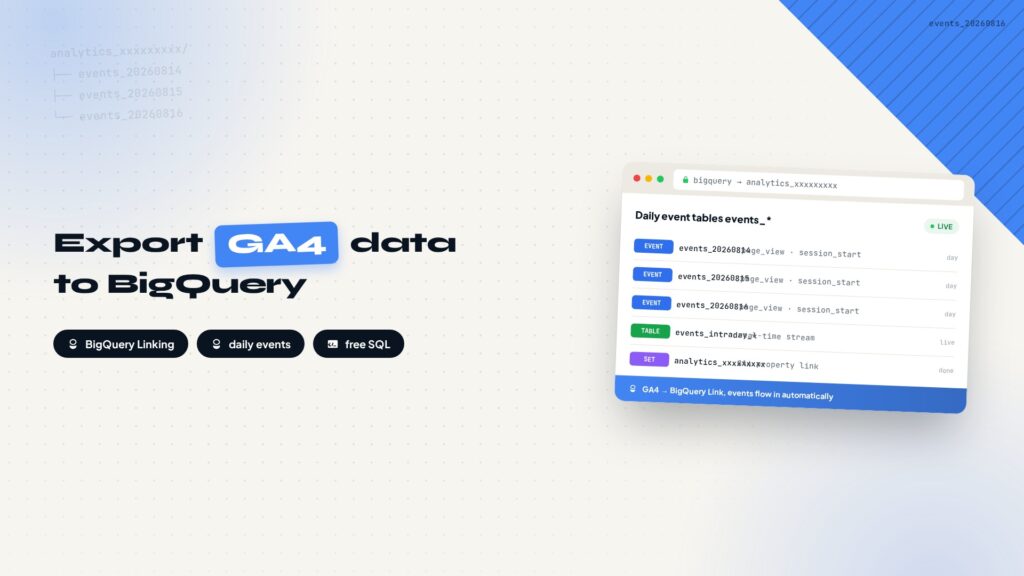
Open the analytics_ dataset and you will see daily event tables:
events_20260814
events_20260815
...Open any table and check that the schema includes these key fields:
- event_name
- event_timestamp
- user_pseudo_id
- event_params
- traffic_source
- device
- geo
If these fields are present, GA4 data is flowing into BigQuery completely. New events_ tables will be generated every day, and you can start running SQL analysis.
Full workflow recap
The whole setup in four steps
Confirm GA4 property
GA4, not Universal Analytics.
Open BigQuery Links
Admin, then Product links.
Create the Link
Project, region, Daily export.
Wait and verify
Hours to 24h, check events_ tables.
Related reading
- How to export Google Search Console data to BigQuery
- How to set up a GA4 data stream for your website
- How to install and configure Google Tag Manager on your website
every Thursday.
Hosting reviews, builder comparisons, performance tips, and plugin picks — curated weekly for WordPress site owners and builders.