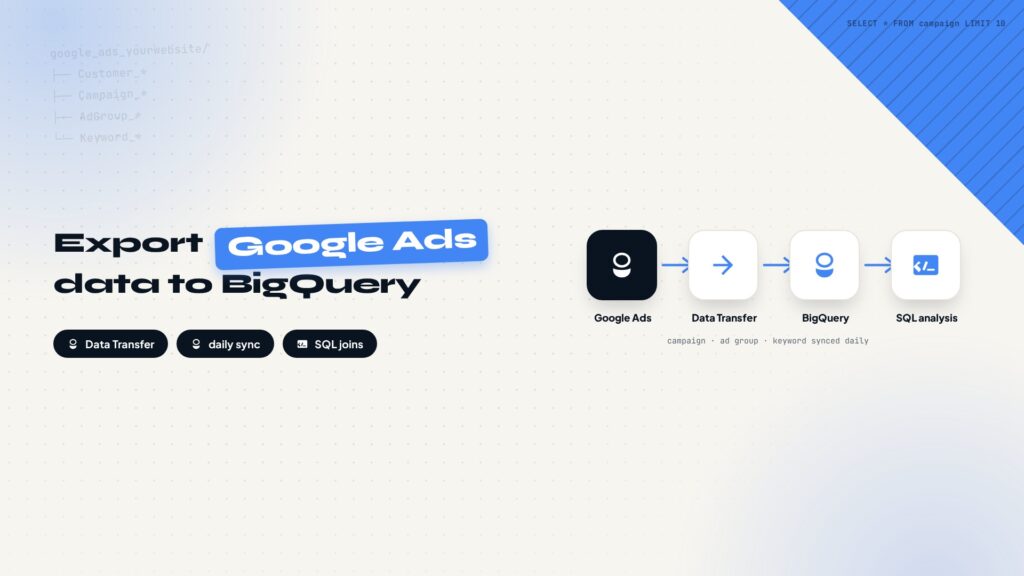
Google Ads reports are restrictive for long-term analysis. Exporting the data to BigQuery lets you join ad spend with search and behavior data using SQL. This guide covers confirming the API, creating the transfer, configuring schedule and a service account, and verifying the first run.
Why connect Google Ads to BigQuery
The Google Ads interface is fine for monitoring campaign performance, but it gets restrictive for long-term analysis: report dimensions are fixed, exports have limits, and there is no easy way to join ad data with Search Console or GA4 data. Once Google Ads data lands in BigQuery, ad spend, clicks, and conversions are stored in daily tables you can query with SQL, and you can run them alongside search and behavior data from the same project.
This post walks through the whole setup: confirming the API, creating the transfer, configuring the schedule and a dedicated service account, and triggering the first run to verify the pipeline. Everything happens in the browser, no code required.
Step 1: Confirm BigQuery Data Transfer API is enabled
Open Google Cloud Console and confirm the project selected at the top is yourwebsite-dataset. Then click the ☰ icon at the top left, open APIs & Services from the left menu, go to Enabled APIs & services, and check whether BigQuery Data Transfer API is enabled.
If it is not, open the Library under APIs & Services, search for BigQuery Data Transfer API, and click Enable. This API may already be on if you set up Search Console or GA4 exports earlier, in which case it shows as Enabled.
Step 2: Open BigQuery Data Transfers
Open BigQuery Data Transfers, or find Data transfers in the BigQuery left menu. Then click + CREATE TRANSFER.
Step 3: Choose the data source
Under Source type, select Google Ads. If Google Ads is not in the list, the BigQuery Data Transfer API is not enabled, so go back to Step 1.
Step 4: Create the Google Ads transfer
After picking the source, configure the settings in order.
Data source details
In Customer ID, enter the customer ID of the Google Ads account you want to connect, the numeric string shown in the account. Click Continue.
Destination settings
Specify where the Google Ads data should be stored. For example, enter google_ads_yourwebsite, and the data lands in that dataset inside the yourwebsite-dataset project. Click Continue.
Transfer config name
This is an internal identifier. Enter something like yourwebsite-google-ads-daily so you can recognize the transfer later in the list.
Schedule options
Choose the frequency based on your needs. If real-time updates are not required, pick Daily and set the time to 03:00 UTC to stay clear of daytime analysis hours.
The more frequent the schedule, the more sync runs and the faster the data grows, which increases BigQuery storage and query costs. For SEO analysis, Daily is usually enough, and there is no need for a tighter schedule.
Service account
It is best to create a dedicated service account for the Google Ads transfer instead of reusing one from other purposes. Steps:
- In Google Cloud Console, go to IAM & Admin, open Service Accounts, and click + Create Service Account.
- Enter the Service account name, for example google-ads-transfer-yourwebsite. The system generates the matching email automatically, similar to google-ads-transfer-yourwebsite@yourwebsite-dataset.iam.gserviceaccount.com.
- For Description, write Google Ads BigQuery Data Transfer Service Account.
- Click Create and Continue.
- On the permissions page, add two roles: BigQuery Job User and BigQuery Data Editor, then click Done.
After creating it, go back to the Google Ads transfer creation screen that was waiting, and pick the new service account from the dropdown.
Step 5: Trigger the first run to verify
Once the transfer exists, trigger it manually the first time to confirm the whole pipeline works.
Open Data transfers in BigQuery (console.cloud.google.com/bigquery/transfers/), select the transfer you just created, click Schedule backfill, choose run one time transfer, and confirm.
Then open Run history for that transfer. You will see the status change: Pending → Running → Succeeded.
If it succeeds, go back to the BigQuery Explorer, expand yourwebsite-dataset, open the google_ads_yourwebsite dataset, and you should see tables like these:
google_ads_yourwebsite
├── Customer_*
├── Campaign_*
├── AdGroup_*
├── Keyword_*Once these tables appear, Google Ads data is flowing into BigQuery. From then on it syncs automatically on the schedule you set.
Full workflow recap
The whole setup in four steps
Confirm the API
Enable BigQuery Data Transfer API.
Create the transfer
Pick Google Ads, enter Customer ID.
Set up service account
Dedicated account, two roles.
Trigger and verify
Run history to Succeeded, check tables.
Related reading
- How to export Google Search Console data to BigQuery
- How to export GA4 data to BigQuery
- How to connect your website to Google Search Console and submit a sitemap
every Thursday.
Hosting reviews, builder comparisons, performance tips, and plugin picks — curated weekly for WordPress site owners and builders.