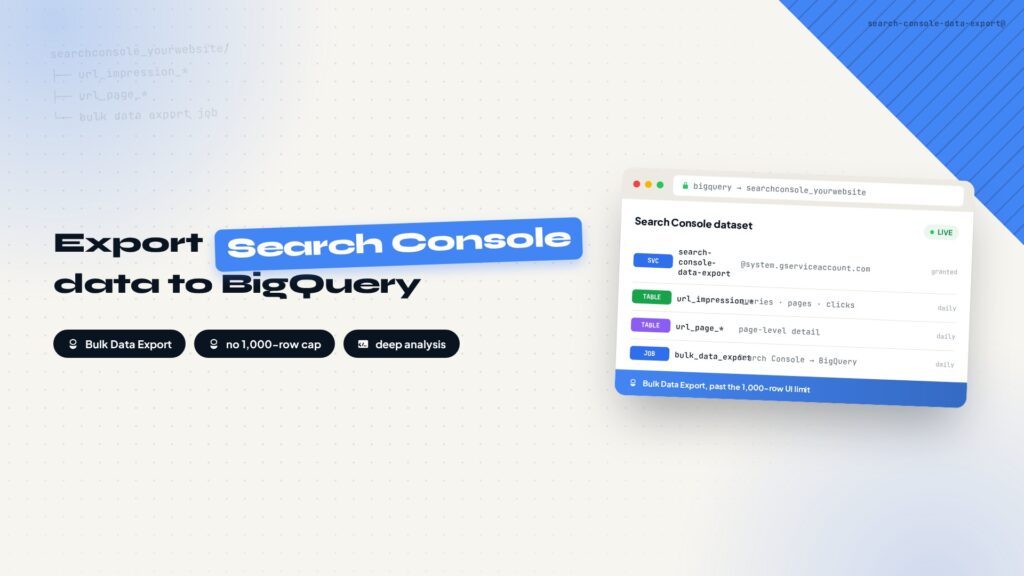
Search Console shows at most 1,000 rows and aggregates data beyond a point. Exporting it to BigQuery lets you run full SQL analysis. This guide covers creating a Cloud project, enabling APIs, creating a dataset, starting Bulk Data Export, and fixing the Missing permissions error.
Why connect Search Console to BigQuery
Google Search Console works well for quick data checks, but the interface has real limits: it shows at most 1,000 rows at a time, aggregates data beyond a certain granularity, and keeps history only for a limited window. If you want to compare periods, group and filter by URL, or join search data with your own business data, the interface stops being enough.
Once Search Console data is exported to BigQuery, every search record lands in tables you can query with SQL. This post walks through the whole setup: creating a Google Cloud project, enabling APIs, creating a dataset, starting Bulk Data Export from Search Console, and fixing the permission error that shows up along the way. Everything happens in the browser, no code required.
Step 1: Create a Google Cloud project
Open Google Cloud Console and create a project. The name is up to you, for example yourwebsite-dataset.
Right after creating it, attach a billing account. If you skip this, the Search Console connection fails later with an error.
- Click Billing in the left menu of Cloud Console.
- Click Link a billing account.
- If you do not have a billing account yet, create one. The setup asks for a MasterCard or Visa credit card.
Step 2: Enable the APIs
Go to APIs & Services, open the Library, search for BigQuery API, and confirm the status is API Enabled. If it is not, click Enable.
You should also enable BigQuery Data Transfer API. You will need it later when connecting Google Ads data.
Step 3: Create a dataset
Open BigQuery, find your project in the Explorer panel on the left, click the three dots next to it, and choose Create dataset.
Set the Dataset ID to searchconsole_yourwebsite, pick US as the location, and click Create dataset.
When done, the structure looks like this: the yourwebsite-dataset project contains a searchconsole_yourwebsite dataset.
Step 4: Start Bulk Data Export from Search Console
Open Google Search Console and select your site property. If you have both www.yourwebsite.com and yourwebsite.com, choose the verified Domain Property.
Open Settings on the left, find Bulk data export, and click it. The page asks for two values:
- Cloud project ID: enter yourwebsite-dataset.
- Dataset name: enter searchconsole_yourwebsite.
Click the continue button and you will see the error Missing permissions in Cloud project. Do not worry, this is expected. It means the dataset itself is fine, but Search Console does not have permission to write into your Cloud project yet. The next step fixes exactly that.
Step 5: Grant access in IAM
Open Google Cloud IAM and confirm the project selected at the top is yourwebsite-dataset. Getting the project wrong here is a common mistake.
Click Grant Access or + Grant Access. In New principals, enter the official service account used by Search Console:
Then add two roles. Both are required:
| Role | What it does |
|---|---|
| BigQuery Job User | Lets Search Console create BigQuery jobs |
| BigQuery Data Editor | Lets it create tables, write data, and update the dataset |
The final page should show the Search Console service account with both BigQuery Job User and BigQuery Data Editor. Click Save once confirmed.
Step 6: Go back to Search Console and finish
Open Settings in Search Console again, go to Bulk data export, and click Continue. This time the permission error is gone and Google starts initializing the export.
During initialization, BigQuery shows several temp_ tables. This is normal, they are created while GSC sets up the export. After a few hours up to 24 hours, the real tables appear:
- searchdata_site_impression
- searchdata_url_impression
At this point Search Console data flows into BigQuery continuously. New data lands every day, so you can run SQL analysis without worrying about the interface limits.
Full workflow recap
The whole setup in four steps
Create project, enable APIs
Cloud project, billing, BigQuery API.
Create the dataset
searchconsole dataset inside BigQuery.
Start the export
Enter project ID and dataset in GSC.
Grant IAM roles
Two roles, then confirm in GSC.
Related reading
- How to connect your website to Google Search Console and submit a sitemap
- How to set up a GA4 data stream for your website
- How to install and configure Google Tag Manager on your website
every Thursday.
Hosting reviews, builder comparisons, performance tips, and plugin picks — curated weekly for WordPress site owners and builders.